

Writing Widgets: Your Word Goal on the Home Screen
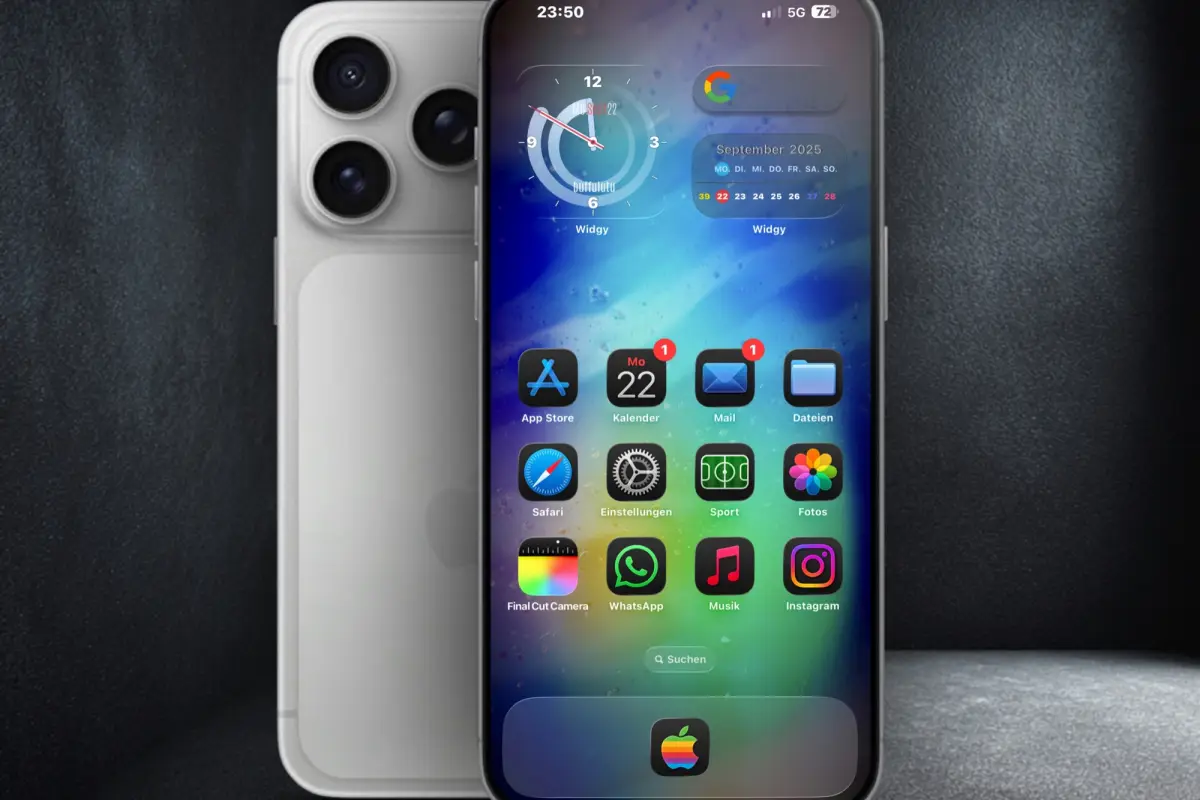
Suppose your novel needs 800 words a day and it is nine in the evening. You have written 560 of them. A widget that says “240 to go” at that moment is useful, because it names a gap small enough to close before bed. One that shows “560 / 800” leaves the subtraction to you, and one that only opens your writing app tells you nothing about the day at all. So a home screen widget can help with a word count goal, as long as it shows a number you can act on today and the app behind it knows what you wrote.
The second condition is where most writing apps fall short. I went through the widget documentation of Ulysses, Bear and Drafts and the App Store listings of Scrivener and iA Writer, and none of their widgets shows a goal or a word count. Ulysses surprised me most, since inside the app it already turns a deadline into a daily target. Its widgets open the inbox or a project and stop there.
Words written or words left: which one to display
Which half of your progress you should look at is a question Minjung Koo and Ayelet Fishbach studied directly. In a set of four studies in the Journal of Consumer Research, they found that people working toward a goal stay more motivated when their attention goes to whichever part is smaller (Koo and Fishbach, Journal of Consumer Research 2012). At the start of a project the smaller part is the progress already made. Towards the end it is what remains. They called this the small-area hypothesis.
For an 80,000-word draft due in 100 days, which works out at 800 words a day, the smaller number changes sides about halfway through.
| Point in the project | Written | Still to write | Number the widget should show |
|---|---|---|---|
| Day 10 | 8,000 words | 72,000 words | the 8,000 written |
| Day 50 | 40,000 words | 40,000 words | either one |
| Day 90 | 72,000 words | 8,000 words | the 8,000 left |
The same logic repeats within a single day. At breakfast all 800 words are still open, so a ring that visibly fills after the first 150 words gives you the smaller area to look at. By the evening in the example above, “240 to go” is the smaller figure. If your tracker lets you choose between the two views, switching somewhere around the middle fits the finding better than leaving a running total on screen for months.
The limits are worth stating plainly. None of the four studies involved writing, and I found no research on whether the effect holds over a manuscript that takes a whole season to finish. Trying it costs nothing, though. If you do not have a daily figure yet, the writing goal calculator turns a deadline into one, and the article on how many words a day you should write helps you judge whether that figure is realistic.
What the research on checking progress supports
The broader evidence comes from a 2016 meta-analysis led by Benjamin Harkin. It pooled 138 randomised studies with 19,951 participants, each of which compared a group prompted to monitor its progress more often with a control group that was not (Harkin et al., Psychological Bulletin 2016). The prompted groups reached their goals more often than the control groups, with an effect size of d = 0.40. Most psychologists would place that somewhere between a small and a medium effect.
Two of the subgroup comparisons bear on widgets. When people physically recorded their progress, the effect was larger than when they checked without writing anything down (d = 0.43 against 0.29). Making progress public or reporting it to at least one other person helped more than keeping it private, too (d = 0.55 when monitored in public and 0.47 when reported to someone, against 0.19).
Almost all of this evidence comes from health. Weight loss alone accounts for 50 of the 138 studies, and the authors could include only one study from outside health at all, which looked at how people spent their time. Nobody in the sample was tracking a manuscript. The authors also point out that they did not correct their subgroup tests for the number of comparisons they ran, so the moderator figures deserve less weight than the main result. I found no retraction or correction notice for the paper.
In these studies, monitoring was something people did on purpose, such as stepping on a scale, taking a blood pressure reading or writing down a meal. Catching sight of a number while you check the weather is a much weaker version of that. The closest match to what was tested is a widget you type your word count into after each session, and that is the setup I would choose.
How often a widget actually gets seen
Widgets make sense because of the way people use their phones. Researchers at the University of Lincoln recorded every phone use of 23 staff and students over two weeks, out of 29 recruited participants aged 18 to 33. On average they used their phones 84.68 times a day, while their own estimate was about 37, and 55 percent of all uses lasted less than 30 seconds (Andrews et al., PLOS ONE 2015).
The sample is small and young, and every participant owned an Android phone, so the figures illustrate a pattern rather than describe the average user. The pattern is still useful here. Much of the time your phone is in your hand you are only glancing at it, and a glance of a few seconds is the kind of attention a widget is designed for.
Writing apps with widgets, and what those widgets do
Our roundup of writing apps for iPhone compares nine apps. For five of them I read the developer’s own help pages or App Store listing to see what their widgets offer.
| App | Widgets according to the developer | Shows a goal or word count |
|---|---|---|
| Ulysses | Inbox and Project; New Sheet and Project on the Lock Screen | no |
| Bear | Single Note, Sidebar, Search, Random Note, Find Notes, Create Note, plus five Lock Screen widgets | no |
| Drafts | Grid of commands, List, single Draft, Task, and a Lock Screen widget | no |
| Scrivener | no widgets mentioned in the App Store listing | no |
| iA Writer | no widgets mentioned in the App Store listing | no |
Ulysses is the only app in that roundup that calculates a daily target from a deadline, which makes the gap more noticeable. The target exists, it just never leaves the app. Bear and Drafts offer more widgets than anyone else in the table, but both are note apps without word goals, so there is nothing for a widget to count down.
If you want the goal itself on your home screen, it has to come from an app that manages the goal, and in practice that means a writing tracker. Our guide to what a writing tracker measures explains how that kind of app differs from the editor you write in. I did not survey tracker apps for this article, so look for widgets in the App Store or Google Play description before you pay for one.
Why the widget can show an old number
Go back to the evening with 560 words. Say you wrote them in Scrivener on your laptop and typed the total into your tracker at twenty to nine. Whether the widget on your phone shows “240 to go” a few minutes later, or still shows the full 800, depends on rules the operating system sets.
On iPhone the widget is not a small copy of the running app. iOS draws it in a separate process and asks the app for new content only from time to time. Apple’s developer documentation speaks of a daily budget, which for a widget you look at often typically allows 40 to 70 refreshes, or one every 15 to 60 minutes (Apple, Keeping a widget up to date). Refreshes that happen while the app itself is open in the foreground do not come out of that budget, which is why opening the tracker once usually brings the widget up to date.
Android arrives at a similar place by another route. An app can ask the system to update its widget on a schedule, and Google’s documentation does not let that schedule run more often than every 30 minutes (Android developer documentation). If the tracker wants the widget to change sooner, it has to push the update itself, typically at the moment you save a session.
On iPhone the quickest path runs through the widget. Since iOS 17 a widget can carry buttons, and Apple’s documentation says a tap on one is always followed by a reload (Apple, Adding interactivity to widgets). Log the 560 words with a button on the widget and the new figure appears almost at once. Log them in the app and close it, or wait for a sync from the laptop, and a display-only widget may stay behind for half an hour or so.
Adding the widget on iPhone and Android
Setting a widget up takes less than a minute on either system. On an iPhone you hold a finger on an empty part of the Home Screen until the icons start to jiggle, tap Edit in the top left corner and choose Add Widget. Search for your tracker, pick one of the sizes it offers and drop it in place. The Lock Screen has taken widgets since iOS 16; Apple’s support page describes holding the Lock Screen until a Customize button appears (Apple Support). Widgets dropped onto each other form a stack, and a stack holds up to ten.
Android phones vary more from one manufacturer to the next, so the following is Google’s own version of the steps. Hold an empty spot on a Home screen, tap Widgets, find the app and drag the widget to where you want it. To change its size you hold the widget, let go, and pull the dots that appear around its outline (Android Help). Google adds that some of these steps only work from Android 14, which would explain different menus on an older phone.
The more important decision is where the widget goes. In a Smart Stack the iPhone picks which widget to show at a given moment, so on some evenings your goal will be hidden behind the weather or the calendar when you pick up the phone. I would give the number a fixed spot of its own on the first page. The small size is usually enough, because a glance only lasts a few seconds anyway.
When the widget does more harm than good
Now picture a different evening, the third one in a row with nothing written. The same widget that helped at 560 words now shows 800 open words every time you unlock the phone, and on a day like that it mostly reminds you that the book is stuck. A streak counter makes this sharper than a word count, since one empty day resets it to zero. Whether a streak suits you depends a good deal on how you work, which our article on writing streaks goes into. If a missed day tends to make you drop the whole project, a weekly total is the kinder figure to put on the home screen.
Some schedules gain little from a daily number at all. Someone who writes in two long sessions a week, say Tuesday and Saturday mornings, will see a zero on the other five days, and a weekly goal or a look at the writing heatmap on Sunday says more about how the week went. Revision is the other case. While you cut scenes, the word count falls, and a widget that counts up towards a target has nothing useful to report.
My suggestion is a trial of two weeks. At the end, ask yourself whether you sat down to write more often or felt calmer about the project. If neither is true, take the widget off again. The goal is still in the app whenever you want to look it up.
Can I put my writing goal on the iPhone Lock Screen?
Yes, from iOS 16 onward, if the app you use offers a Lock Screen widget. You can read the number there, but Apple notes that buttons and toggles in widgets stay inactive while the device is locked, so logging words from the widget means unlocking the phone first.
Will my iPhone widget show up on my Mac?
It can. Since macOS Sonoma you can add widgets to the Mac desktop, and with Continuity that includes widgets from an iPhone running iOS 17 or later, even if their app is not installed on the Mac (Apple). Apple’s developer documentation warns that a tap on a button in such a widget takes longer, because the Mac hands it to the iPhone and waits for the updated widget to come back.
Can a widget read the word count from Google Docs or Scrivener?
Not by itself. A widget only shows what its own app knows, and none of the editors in the table above puts a word goal into a widget. Most writers therefore enter the count in a tracker after each session, and the tracker’s widget picks it up from there.
Why does my widget show a different number from the app?
In most cases the system has not redrawn the widget yet. Apple does not count updates triggered by an open app against the daily budget, so opening the app once tends to fix it. If the number is still wrong after that, check whether your devices have finished syncing.