

WriteZone for Word: Log Your Word Count From the Document
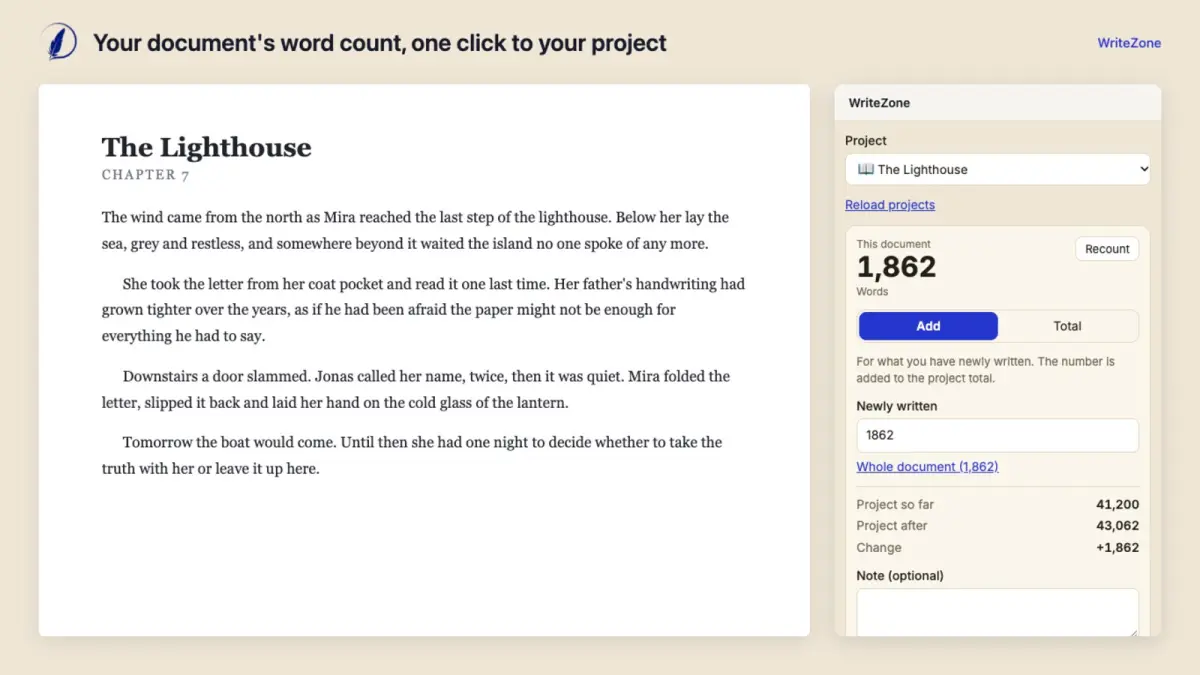
Word keeps its word count in the status bar at the bottom of the window. If you write in Word and track in WriteZone, you have been reading the number off that bar, switching to the app and typing it in, every day. With version 4.0.0 there is an add-in for Word that does both for you. It sits in a pane beside your document, counts the words, and sends the number to your project when you click “Enter”. Your text stays where it is. Nothing but the number goes to WriteZone.
You need Premium for it, and a personal token that you create once in the web app. It works in Word for Windows, Word for Mac and Word on the web. So far we have tried it in Word for Mac.
What the task pane shows
In the example the developer prepared for the add-in’s listing, the document is chapter 7 of a novel called “The Lighthouse” and has 1,862 words. The project stands at 41,200 words before the entry.
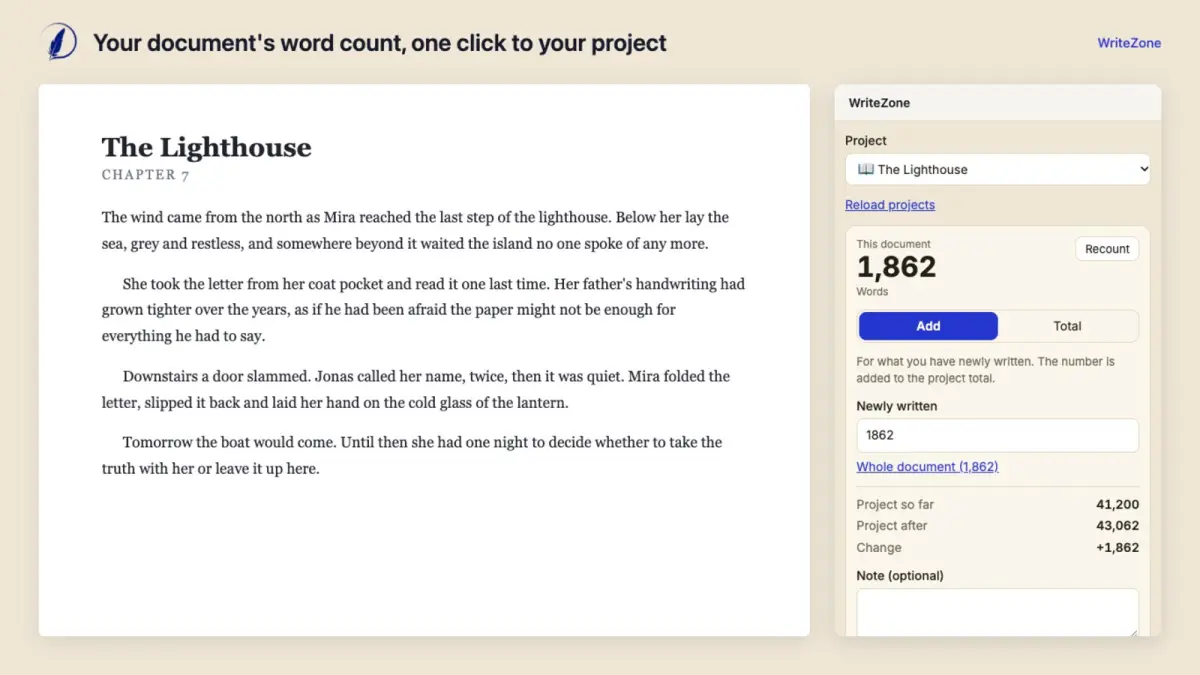
The pane has two modes. If each chapter lives in its own file, you want “Add”, because the file’s count has to be added to what the project already has. In the example that takes the project from 41,200 to 43,062, and the pane shows you both numbers and the change of +1,862 before you send anything. If the whole book is one document, you want “Total”, which simply sets the project to the document’s count.
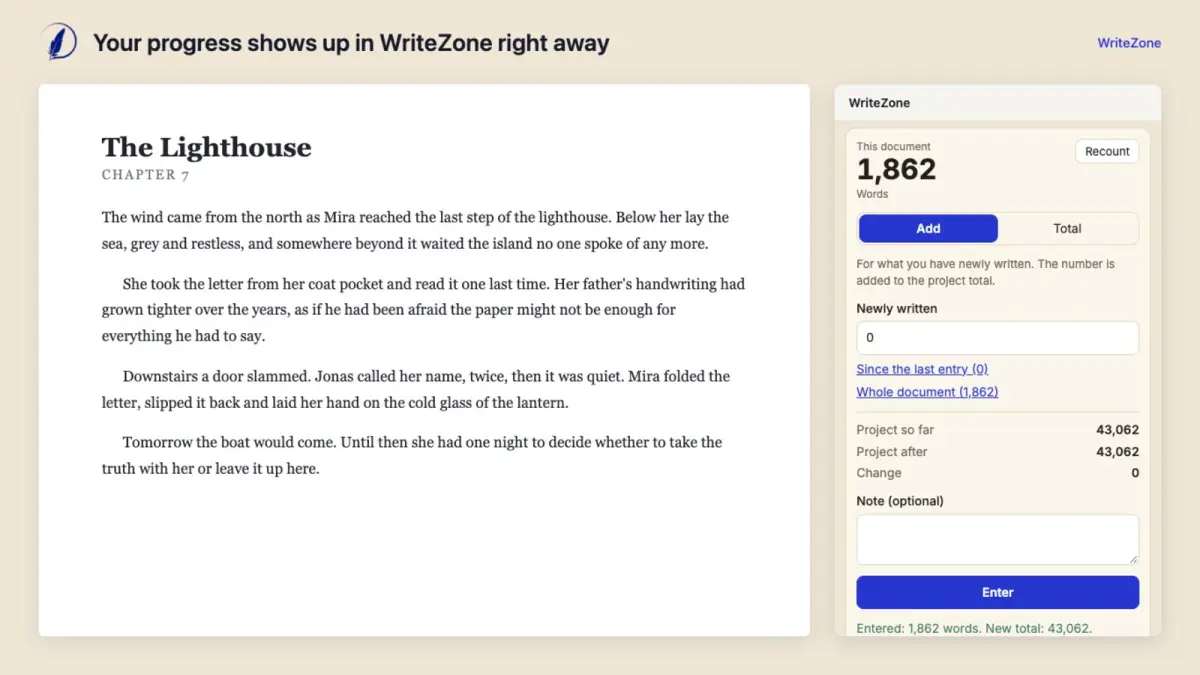
Click “Enter” and the pane answers “Entered: 1,862 words. New total: 43,062.” The add-in remembers for each document which project you picked and what you logged last. The next time you open the pane it offers “Since the last entry” with the difference, so you don’t have to work it out.
Picking “Total” for a single chapter would be a mistake, because it would cut the project down to the size of that chapter. The pane catches this. It tells you by how much the project total would drop and suggests “Add” instead.
Step 1: create a personal token
The token is created in the web app, in the settings, on the page “Personal tokens”.
Click the button for a new token.
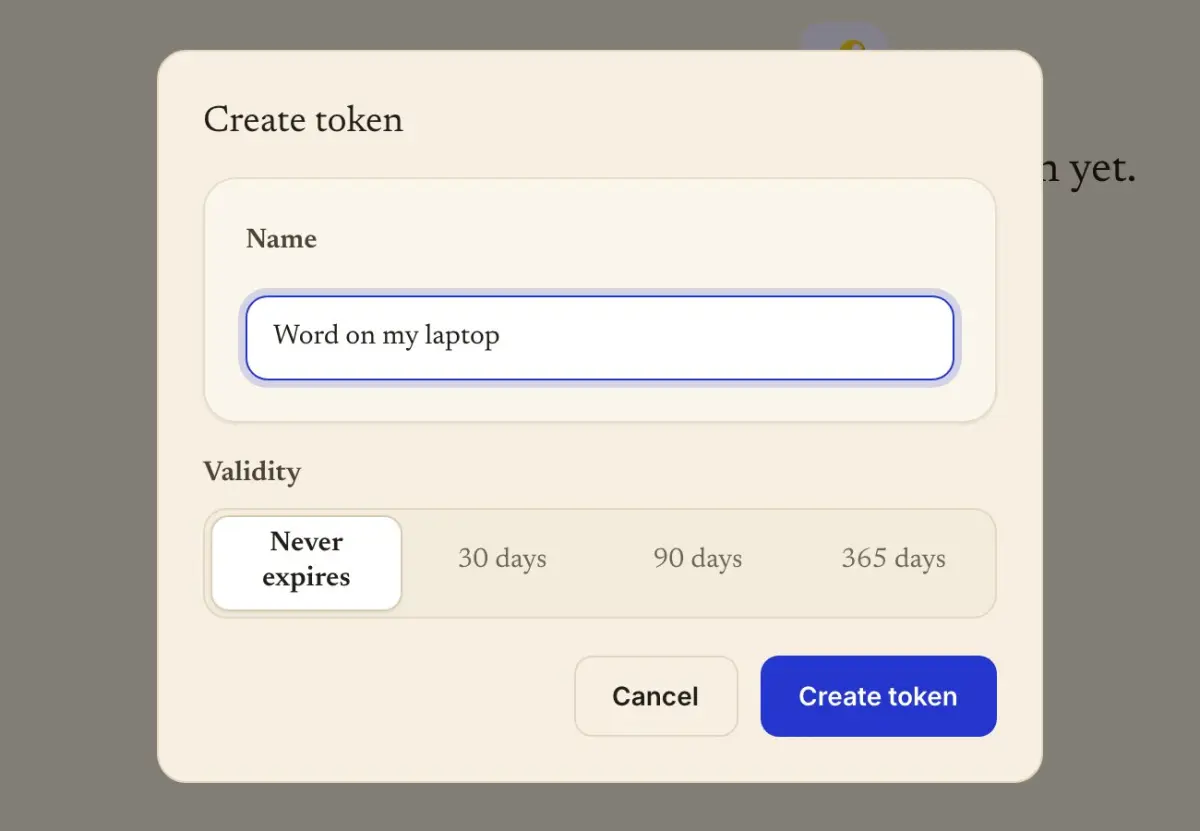
Give it a name you will recognise, such as “Word on the laptop”.
Choose how long it is valid. The choices are no expiry, 30 days, 90 days and 365 days.
Confirm.
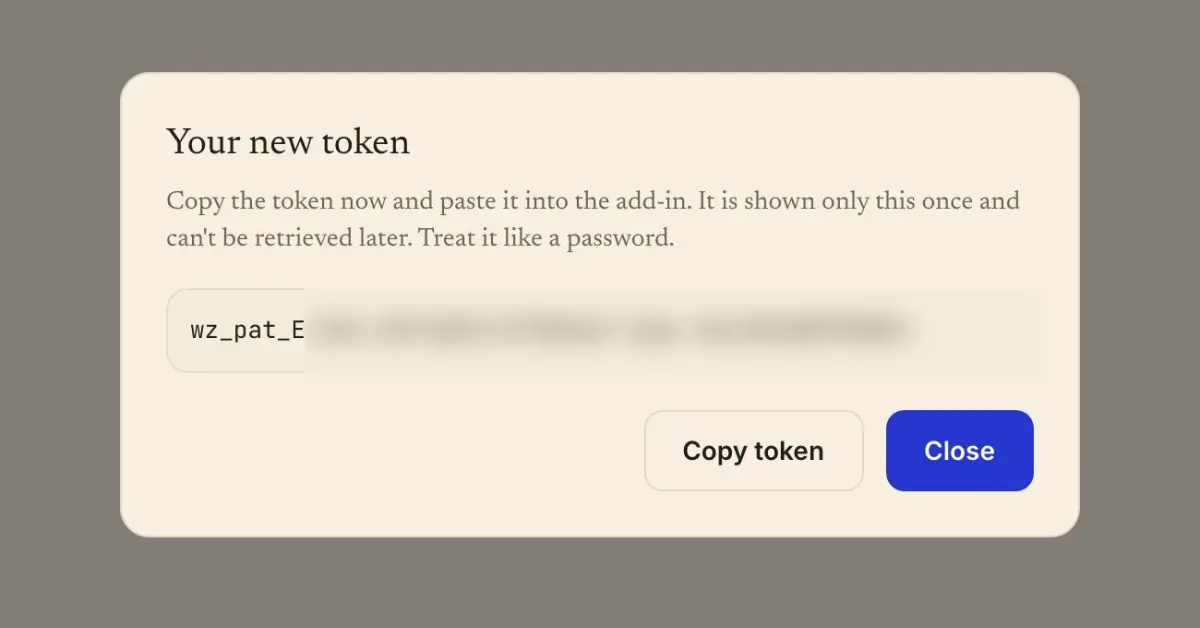
The app then shows the token once. It starts with wz_pat_, and it cannot be displayed again later, so copy it straight into the add-in. An account can hold up to five tokens, and the list shows each one’s name, its first characters, the date it was created, when it was last used and when it expires. Each has its own button for revoking it.
Step 2: load the add-in into Word
An Office add-in is a web page plus a small manifest file that tells Word where the page is. WriteZone for Word is not in Microsoft’s add-in store yet, so it has to be set up once. For Word for Mac and Word for Windows, word.writezone.app offers an installer that puts the manifest in place, and the page carries instructions for all three versions of Word.
On the Mac the button is labelled “Download the installer for Mac”. The package opens with a double-click and runs without an admin password, but Word must have been started once before. Afterwards you quit Word with Cmd+Q, start it again and choose WriteZone under Home, Add-ins. The installer copies the manifest to the folder Microsoft names in “Sideload Office Add-ins on Mac for testing”, dated 7 May 2026 (Microsoft Learn). The page lists Word on Mac version 15.18 as the minimum and gives the folder as /Users/, with the remark “If the wef folder doesn’t exist on your computer, create it.” The steps for copying writezone-word.xml there by hand are on word.writezone.app as well.
On Windows the button is labelled “Download the setup for Windows”. Word for Windows loads a manifest by hand only from a shared folder that has been entered as a trusted add-in catalogue. The setup creates that folder and enters it, and it asks for administrator rights once.
Close Word.
Open the downloaded file with a double-click. If Windows warns about an unknown file, choose “More info” and then “Run anyway”.
Confirm the request for administrator rights.
Start Word and open a document. Select Home, then Add-ins, then Advanced. Choose “Shared Folder” at the top, then WriteZone, and click “Add”.
In Word on the web there is nothing to install. The manifest writezone-word.xml is downloaded from the same page and uploaded through the add-ins menu on the Home tab, and Word keeps it in the browser.
Step 3: connect and log
On first use the pane shows “Connect to WriteZone” and a field labelled “Personal token”. Paste the token and click “Connect”. The pane then lists the active projects that count in words or characters. Projects in pages, chapters, scenes or percent are not offered. If there is none, the pane says “There is no active project that counts in words or characters. Create one in WriteZone.”
“Recount” reads the document again after you have written more. A note can be added to the entry, and the entry is dated with the date of your computer.
What is counted
The add-in counts the main text of the document, in words, characters with spaces or characters without spaces, depending on the project. Footnotes, headers and footers are left out. Word’s own count can therefore be higher, since according to Microsoft’s support page, “Unless you have selected some text, Word counts all text in the document” (Microsoft Support). The counting rules are the same as for “Paste text and count” in the app, which is described in Pages, chapters, scenes or percent.
What a token can do
A token can read your projects with their name, unit, total and goal, create entries, and read your account. It has no access to messages, friends or the feed. WriteZone stores a hash of the token and its first characters. A token stops working when it is revoked, when its validity ends, or when you change your password or sign out everywhere. If Premium ends, the pane reports “You need Premium for that. The add-in only works with an active Premium subscription.”
For what to look for in writing apps and their data in general, see privacy in writing apps.
Does the add-in read my text?
It reads the text inside Word in order to count it. Only the number is sent, together with the date and a note if you write one. The text does not leave Word.
Why does the add-in show a different number than Word?
The add-in counts the main text. Footnotes, headers and footers are left out, while Word itself counts all text in the document.
I lost my token. What now?
A token is shown only once. Revoke the old one in the settings and create a new one.
Can I log several documents to one project?
Yes. Choose “Add”, and the document’s count is added to the project total. “Total” only fits when one document holds the whole project.